Deleting a Book
You can delete a book in the web app or in the iOS and Android apps.
Deleting a book removes it from your BookFusion account and from every device where you're signed in. To free up space on one device without deleting the book, use Remove from Device in the mobile app instead.
On the Web
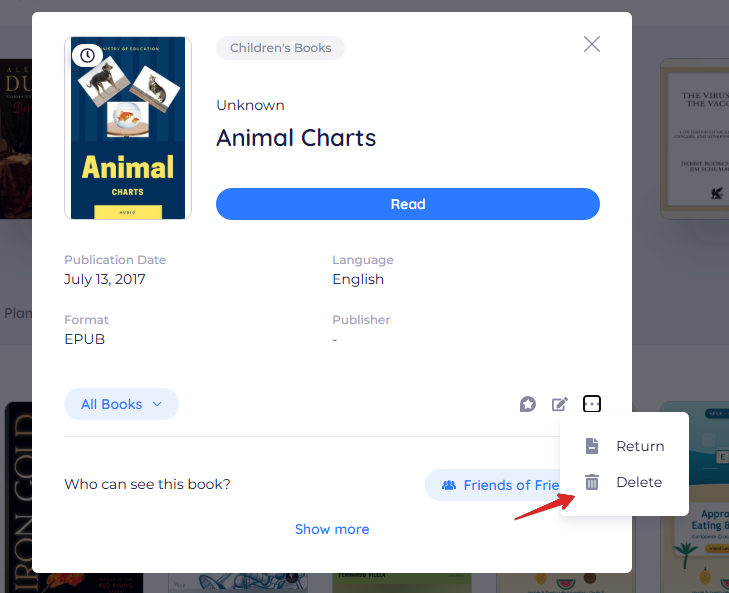
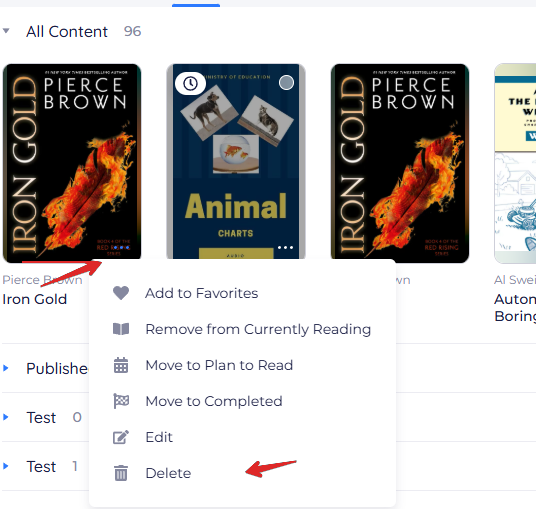
You can delete a book from its details screen or from the menu on its cover.
From the book details screen
-
Click a book cover to open its details screen.
-
Click the ⋯ (three dots) in the bottom-right corner, then choose Delete.
-
Confirm when prompted.
The book is removed from your Bookshelf.
From the cover's menu
- On your Bookshelf, click the ⋯ (three dots) in the bottom-right corner of a book's cover.
- Choose Delete.
- Confirm when prompted.
On iOS
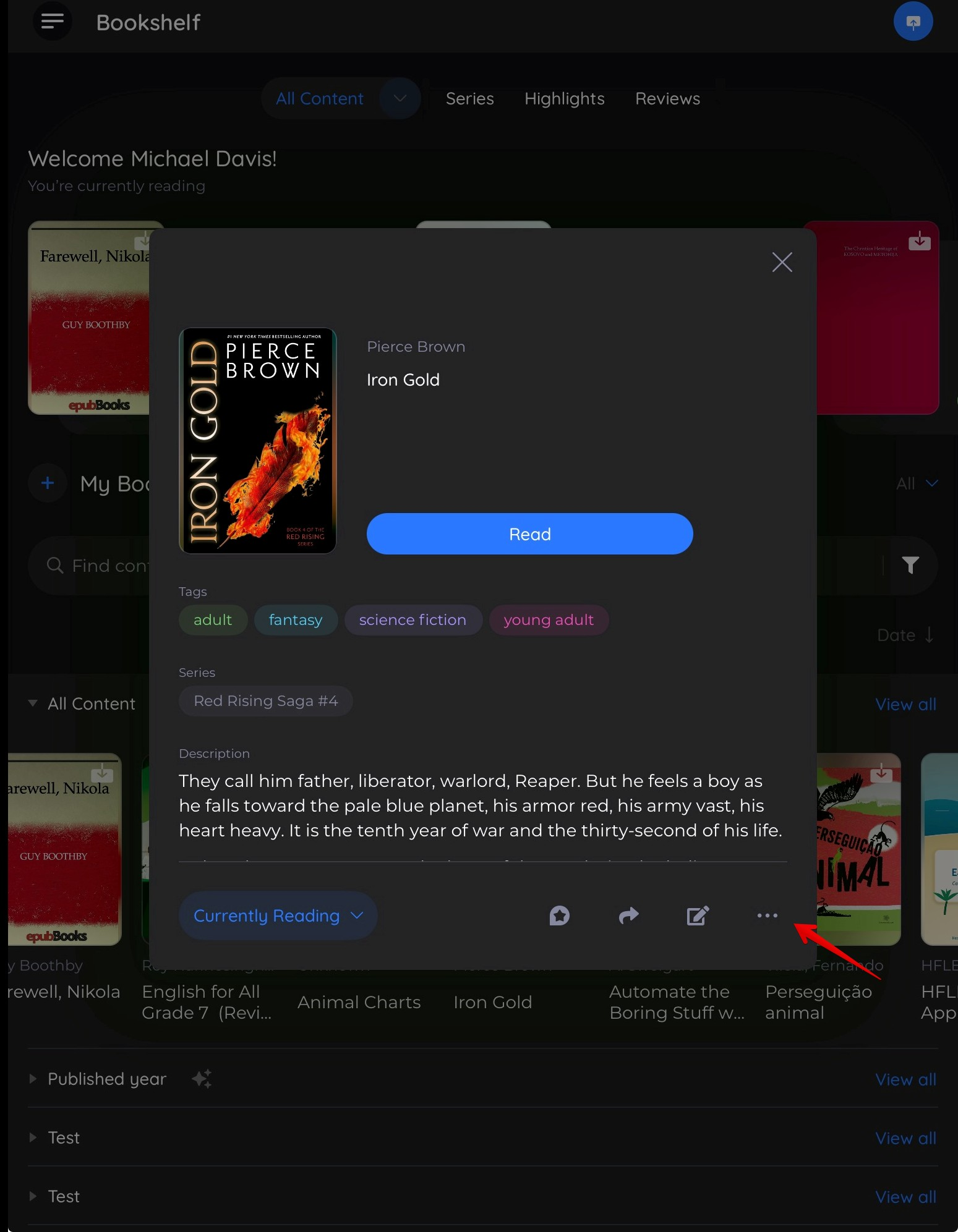
To delete a book on iOS:
-
Tap the book cover to open its details screen.
-
Tap the ⋯ (three dots) in the bottom-right corner of the details screen.
-
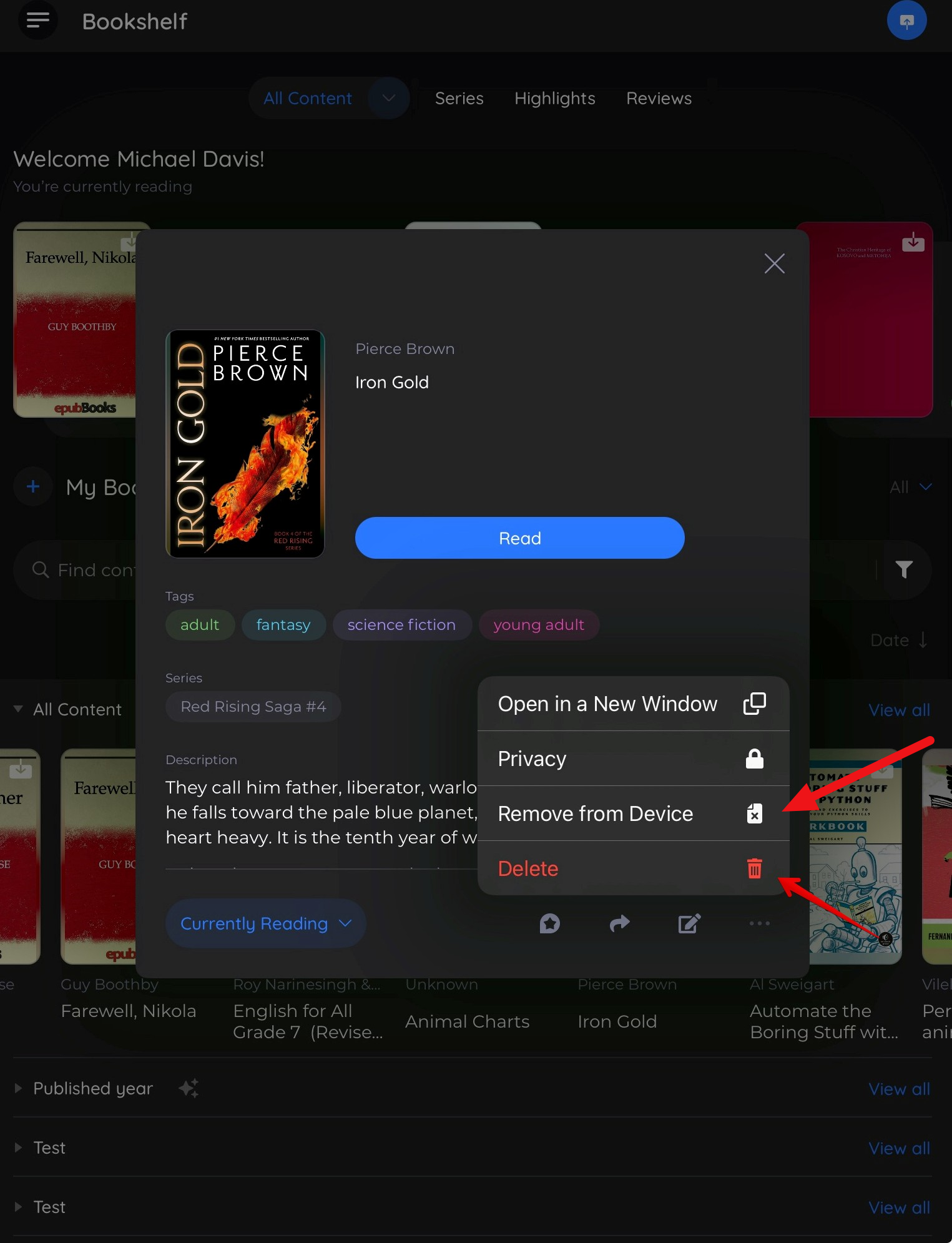
In the menu, choose:
- Delete: Removes the book from your BookFusion account.
- Remove from Device: Deletes the downloaded copy to free up space, but keeps the book in your account.
On Android
To delete a book on Android:
-
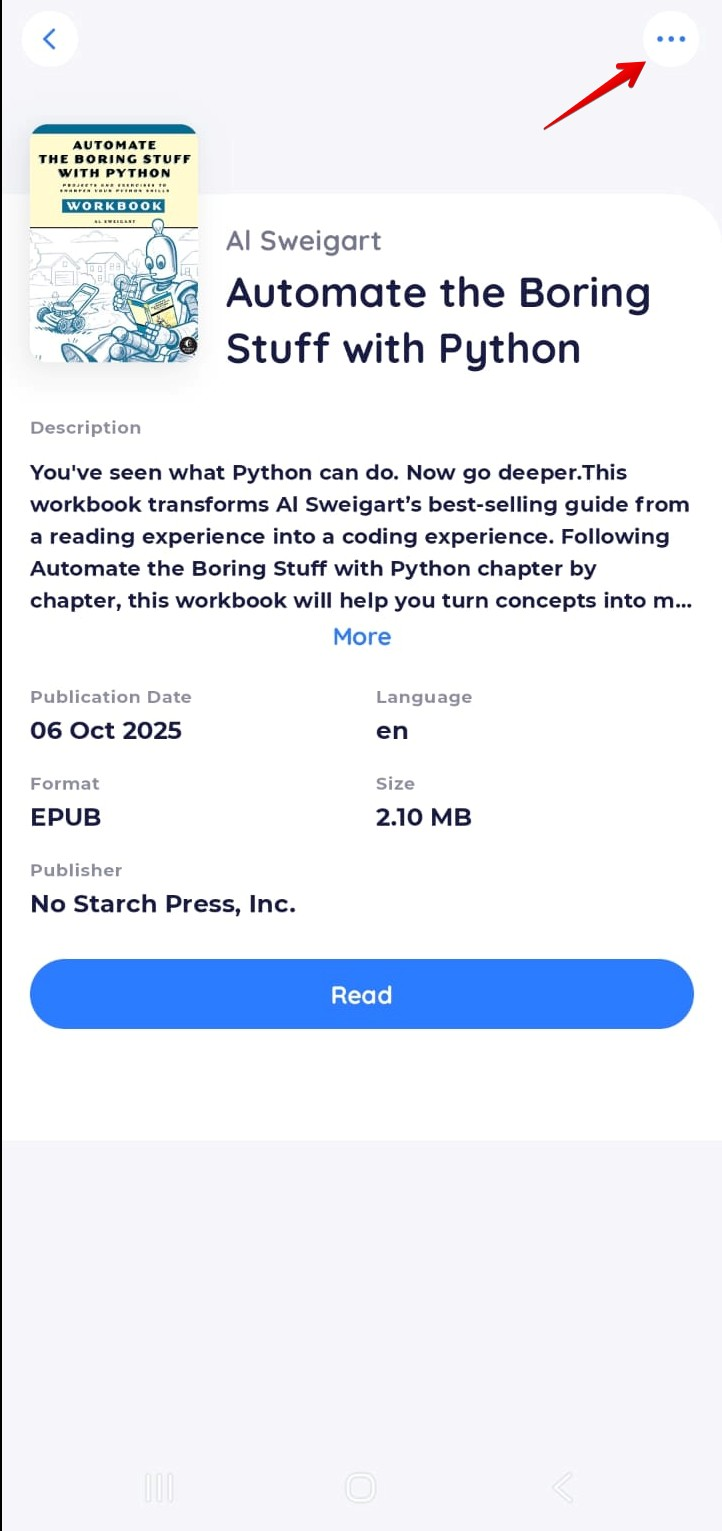
Tap the book cover to open its details screen.
-
Tap the ⋯ (three dots) in the top-right corner.
-
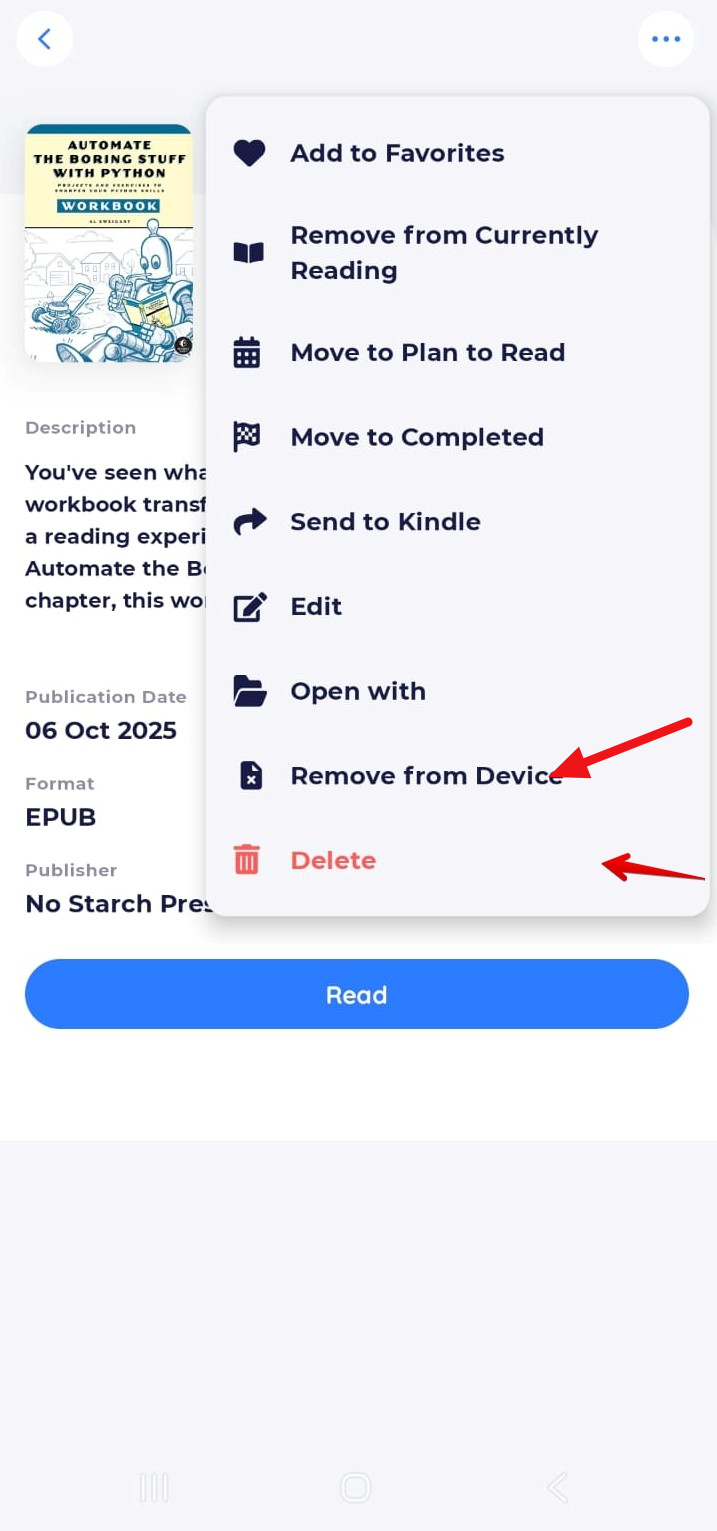
In the menu, choose:
- Delete: Removes the book from your BookFusion account.
- Remove from Device: Deletes the downloaded copy to free up space, but keeps the book in your account.
To delete several books at once on the web, select them and click Delete in the action bar. See Making Bulk Changes to eBooks.